
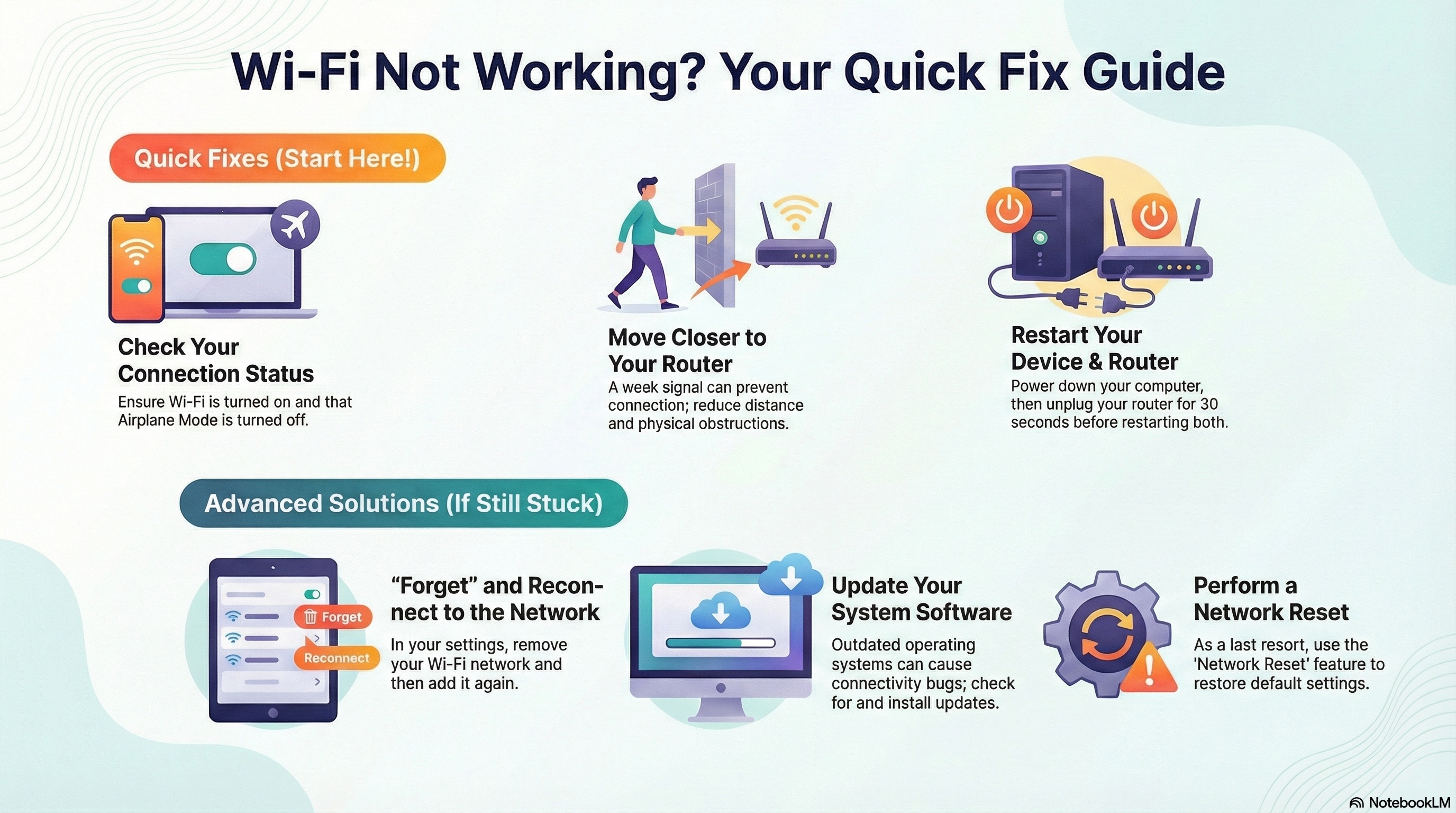
Tutorial 1: Basic Wi-Fi Troubleshooting for Windows
1. Check Your Connection Status and Settings Before attempting advanced fixes, check your taskbar icons to understand your status.
• Wi-Fi Connected: If you see the Wi-Fi icon but cannot load websites, the issue may be a specific app or firewall.
• No Internet: If you see a globe icon or the Wi-Fi icon says "No Internet," you are not connected.
• Airplane Mode: Go to Settings > Network & Internet > Airplane mode and ensure it is turned off.
• Physical Switch: If you are on a laptop, check if there is a physical Wi-Fi switch on the side or front of the device and ensure it is turned on.
2. Run the Network Troubleshooter Windows has a built-in tool to fix common problems automatically.
• Select Start > Settings > Network and Internet.
• Select Status on the left, then scroll down and click Network troubleshooter.
• If you are on Windows 11, you can also run the troubleshooter through the "Get Help" app.
3. Forget and Reconnect to the Network Refreshing your connection to the specific network can resolve credential or profile errors.
• Go to Settings > Network & internet > Wi-Fi and select Manage known networks.
• Select your current Wi-Fi network and click Forget.
• Select the network again and enter the password to reconnect.
--------------------------------------------------------------------------------
Tutorial 2: Basic Wi-Fi Troubleshooting for Chromebooks
1. Verify Wi-Fi Settings Ensure the Wi-Fi radio is actually active.
• Open Settings on your Chromebook.
• Under Network, ensure the switch next to Wi-Fi is turned on.
2. Update Your Software Outdated operating systems can cause connectivity issues.
• Open Settings and go to About ChromeOS.
• Select Check for updates.
• If an update downloads, restart your Chromebook to apply it.
3. Restart the Chromebook If no updates are available, a simple restart is the next best step.
• Turn your Chromebook completely off and then back on again.
4. Forget and Reconnect
• Go to your Wi-Fi settings and select Network.
• Click Disconnect to refresh the connection, then try connecting again.
5. Use Diagnostics
• You can use the Chrome Connectivity Diagnostics tool (available from the Google Play store) to automatically test and troubleshoot Wi-Fi issues.
--------------------------------------------------------------------------------
Hardware Step for All Users (Home Office)
If the device troubleshooting above does not work, the issue may be with the router.
1. Restart the Router: Unplug the power cable from your router and wait at least 30 seconds.
2. Power On: Plug the router back in and wait at least 2 minutes for it to fully restart and connect before trying to use Wi-Fi again.
3. Check Range: Ensure your device is close to the router and free of obstructions.